











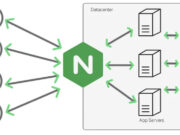




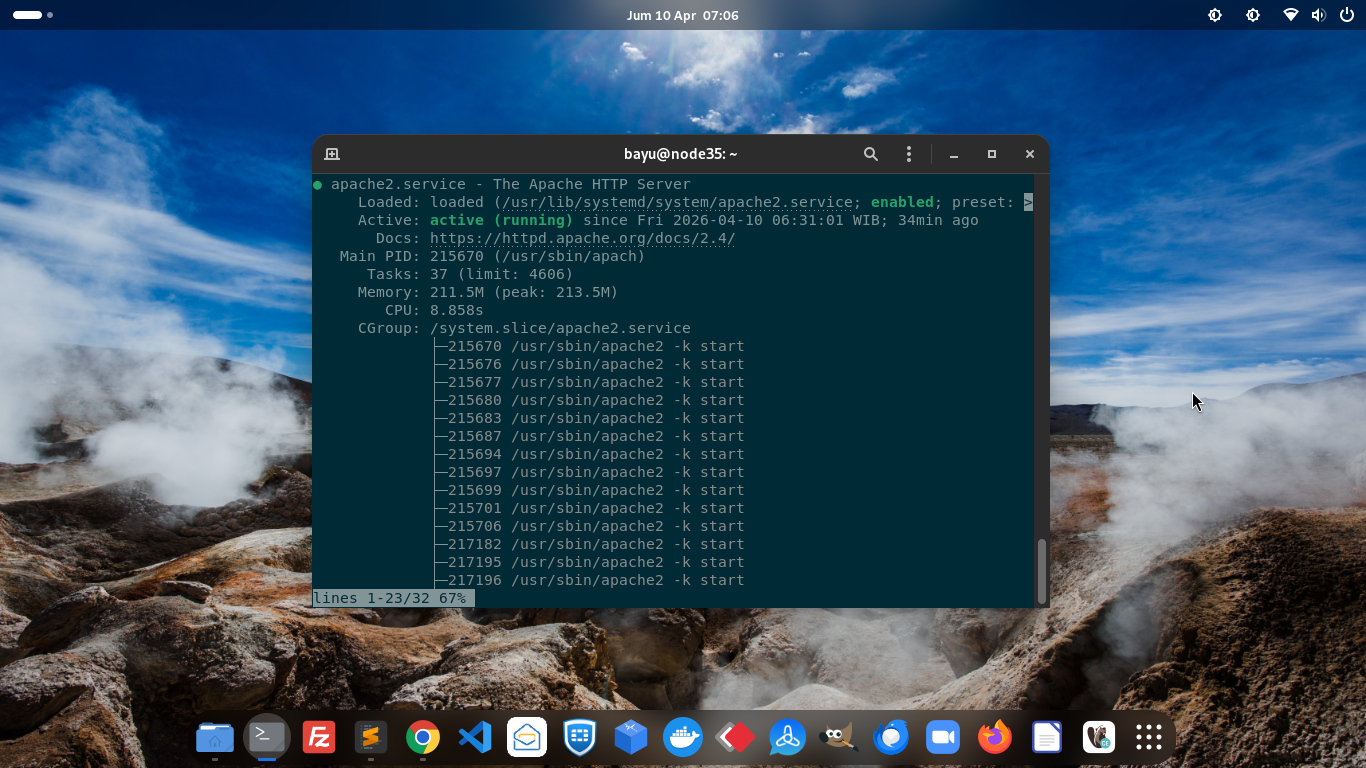
Pada tutorial sebelumnya saya sudah share bagaimana cara mengkonfigurasi ServerBlock (vhost) NGINX di distribusi Ubuntu 24.04 LTS. Namun, NGINX (baca: engine-x) sebenarnya sangat ribet untuk pemula dan butuh kustomisasi tingkat lanjut di level ServerBlock jika Anda ingin melakukan perubahan konfigurasi website dari sisi web server. Itu lantaran NGINX tidak bisa membaca rewrite rule .htaccess, karena memang dari sananya web server besutan engineer Rusia ini tidak kompatibel dengan .htaccess.
Berbanding terbalik dengan Apache yang sepenuhnya kompatibel dengan .htaccess, membuat Apache menjadi pilihan web server yang sangat stabil dan ideal untuk website yang membutuhkan kustomisasi tinggi tanpa harus mengubah konfigurasi di tingkat virtualhost server. Selain itu, web server Apache lebih unggul dalam fleksibilitas dan kemudahan konfigurasi per-direktori menggunakan .htaccess, serta dukungan komunitas yang lebih luas dan matang. Itulah sebabnya mengapa web server Apache sangat ideal untuk lingkungan shared hosting dan pemrosesan konten dinamis secara default.
Fitur ini memungkinkan pengguna Content Management System (CMS) seperti WordPress, Joomla, Drupal maupun Laravel bisa mengubah konfigurasi server (virtual host) tingkat direktori tanpa perlu akses root atau restart server. Tidak seperti web server NGINX yang memerlukan restart layanan web server setiap kali Anda selesai melakukan perubahan konfigurasi di tingkat ServerBlock.
Dengan Apache, Anda bisa menggunakan ratusan modul yang siap pakai misalnya mod_rewrite, mod_expires, proxy_fcgi, mod_php, dan lain-lain yang gunanya untuk memperluas fungsionalitas server, serta memberikan fleksibilitas tinggi dalam menangani berbagai skenario aplikasi website Anda. Poin penting lainnya adalah Apache memiliki dukungan komunitas dan dokumentasi yang lebih luas. Itu memang benar adanya! Sebagai server yang lebih lama dari Nginx, Apache memiliki dokumentasi, tutorial, dan forum dukungan pihak ketiga yang sangat banyak dan semuanya tersedia di internet dalam berbagai bahasa.
Nah, pada tutorial kali ini saya akan sharing mengenai cara install dan konfigurasi Apache 2.4 web server alias LAMP Stack dengan MPM Prefork dan Ruid2 Module di distro Ubuntu 24.04 LTS (Noble Numbat). MPM Prefork adalah modul Apache yang menggunakan pendekatan non-threaded dan pre-forking yakni proses anak dibuat sebelum permintaan masuk. Prefork sangat stabil, aman untuk pustaka non-thread-safe (seperti mod_php misalnya), dan sangat ideal untuk isolasi proses. Namun, modul ini bisa mengonsumsi lebih banyak RAM dan cocok untuk website yang membutuhkan kompatibilitas tinggi dibandingkan mencari kecepatan ekstrem.
Adapun Ruid2 Module atau biasa disebut “Mod_ruid2” merupakan modul Apache suexec berbasis Linux yang meningkatkan keamanan dan performa dengan menjalankan permintaan web menggunakan izin pengguna (UID/GID) yang sebenarnya, bukan sebagai user Apache (www-data). Ruid2 dapat mengisolasi proses pengguna, menghilangkan kebutuhan izin file 777/666 yang tidak aman, dan sering digunakan dalam lingkungan shared hosting untuk meningkatkan keamanan.
Tutorial Install dan Konfigurasi Apache 2.4 (LAMP Stack) dengan MPM Prefork dan Ruid2 Module (Mod_ruid2) di Ubuntu 24.04 LTS
PREREQUISITES:
- Virtual Machine (VM / VPS) dengan OS Ubuntu 24.04 LTS
- VM dengan Hak Akses Root Penuh
- Familiar dengan Baris Perintah Linux
- Terbiasa dengan Terminal SSH / PuTTy / PowerShell
1.) Cek Hostname
Pertama-tama, silahkan cek hostname server Anda terlebih dahulu.
$ hostname
$ hostname -f
2.) Set Hostname yang Benar
Jika hostname atau Fully Qualified Domain Name (FQDN) belum Anda terapkan di server Anda, silahkan terapkan terlebih dahulu dengan command berikut ini:
$ hostnamectl set-hostname server.domain.com
Ganti domain.com dengan domain Anda dan kemudian verifikasi hostname baru dengan command berikut:
$ hostnamectl
3.) Update Sistem Distro Server Anda
Update sistem distribusi server Linux Ubuntu Anda untuk memperbarui dan mendownload semua patch software terbaru untuk melindungi Virtual Machine anda. Silahkan ketik:
$ apt update && apt upgrade
4.) Install Nano Editor dan Paket Pendukung Lainnya
Silahkan download nano editor biar makin mudah untuk mengedit pengaturan konfigurasi di Virtual Machine Anda. Ketik berikut:
$ apt install nano wget zip unzip
5.) Install & Configure Apache 2.4 beserta PHP
Setelah itu barulah kita install Apache 2.4 web server dengan cukup mengetikkan perintah berikut ini di terminal:
$ apt install apache2 apache2-utils
Aktifkan dan layanan web server Apache
$ systemctl enable apache2.service
$ systemctl start apache2.service
6.) Tambahkan Repositori PPA Launchpad Ondrej Surý ke Sistem Ubuntu Anda
Langkah ke-6 kita langsung masuk ke sesi instalasi PHP. Kita akan menggunakan repositori PPA Launchpad yang dihandel oleh Ondrej Surý yang support latest version PHP. Silahkan ketik baris perintah berikut untuk mulai menginstalnya, kita instal Python Software dulu.
$ apt-get install software-properties-common -y
Kemudian tambahkan repositori PPA Ondrej Surý untuk menginstall PHP versi terbaru di sistem Ubuntu Anda. Cukup ketik perintah berikut ini di terminal Anda:
$ sudo LC_ALL=C.UTF-8 add-apt-repository ppa:ondrej/php
Tekan “ENTER” setiap kali ditanya!
7.) Jalankan Sistem Update Lagi
$ apt update
8.) Install PHP Terbaru (PHP 8.3, PHP 8.4 & PHP 8.5) via PPA Launchpad Ondrej Surý
Baru kemudian kita bisa menginstall PHP versi stabil terbaru (8.3 – 8.5) via PPA Launchpad Ondrej Surý di distro Ubuntu 24.04 LTS. Silahkan copy paste perintah berikut ini di terminal SSH Anda.
Harap dicatat bahwa Anda harus memilih salah satu versi PHP berikut, misalnya php8.3 atau php8.4. Anda tidak dapat menjalankan semua versi PHP pada mesin yang sama saat VM Anda menjalankan Apache 2.4 Web Server tanpa PHP-FPM (PHP FastCGI Process Manager).
Install PHP 8.3
$ apt install php8.3 php8.3-common php8.3-mysql php8.3-xmlrpc php8.3-curl php8.3-cgi php8.3-cli php-pear php8.3-dev php8.3-imap php8.3-mcrypt php8.3-mbstring memcached php-memcache php8.3-xml php8.3-tidy php8.3-sqlite3 php8.3-xsl php8.3-gmp php8.3-gd zip unzip php8.3-zip php8.3-soap php8.3-pgsql php-redis libapache2-mod-perl2 libapache2-mod-php8.3 libapache2-mod-wsgi-py3 php8.3-intl php8.3-bcmath
Install PHP 8.4
$ apt install php8.4 php8.4-common php8.4-mysql php8.4-xmlrpc php8.4-curl php8.4-cgi php8.4-cli php-pear php8.4-dev php8.4-imap php8.4-mcrypt php8.4-mbstring memcached php-memcache php8.4-xml php8.4-tidy php8.4-sqlite3 php8.4-xsl php8.4-gmp php8.4-gd zip unzip php8.4-zip php8.4-soap php8.4-pgsql php-redis libapache2-mod-perl2 libapache2-mod-php8.4 libapache2-mod-wsgi-py3 php8.4-intl php8.4-bcmath
Install PHP 8.5
$ apt install php8.5 php8.5-common php8.5-mysql php8.5-xmlrpc php8.5-curl php8.5-cgi php8.5-cli php-pear php8.5-dev php8.5-imap php8.5-mcrypt php8.5-mbstring memcached php-memcache php8.5-xml php8.5-tidy php8.5-sqlite3 php8.5-xsl php8.5-gmp php8.5-gd zip unzip php8.5-zip php8.5-soap php8.5-pgsql php-redis libapache2-mod-perl2 libapache2-mod-php8.5 libapache2-mod-wsgi-py3 php8.5-intl php8.5-bcmath
7.) Setting Apache 2.4 dengan Modul MPM Prefork
Ikuti langkah-langkah berikut ini untuk setting web server Apache 2.4 dengan modul MPM Prefork.
Untuk mengktifkan modul Apache mpm_prefork module:
$ a2enmod mpm_prefork
Sedangkan untuk menon-aktifkan modul Apache mpm_event/mpm_worker, jalankan command berikut ini:
$ a2dismod mpm_event
$ a2dismod mpm_worker
8.) Aktifkan Modul Apache PHP
Kemudian Anda dapat mengaktifkan modul Apache dengan perintah di bawah ini. Ini akan mengaktifkan modul Apache untuk PHP 8.3, PHP 8.4, dan PHP 8.5:
$ a2enmod php8.5
$ a2enmod php8.4
$ a2enmod php8.3
Adapun untuk menon-aktifkan modul Apache PHP, Anda bisa paste perintah berikut ini:
$ a2dismod php8.5
$ a2dismod php8.4
$ a2dismod php8.3
Setelah itu, restart web server Apache Anda
$ systemctl restart apache2
9.) Aktifkan Modul Apache SSL dan HTTP/2
Jika Anda ingin mengaktifkan modul Apache SSL dan HTTP/2, jalankan command berikut:
$ a2enmod ssl
$ a2enmod http2
10.) Non-aktifkan Virtual Host (vhost) default-ssl.conf
Sebelum mengaktifkan name-based Virtual Hosts, pastikan untuk menon-aktifkan vhost default-ssl.conf terlebih dahulu.
$ a2dissite default-ssl.conf
Namun, Anda juga dapat menonaktifkan vhost “000-default.conf” dengan perintah berikut ini:
$ a2dissite 000-default.conf
Lalu edit vhost 000-default.conf seperti berikut ini:
$ nano /etc/apache2/sites-available/000-default.conf
# The ServerName directive sets the request scheme, hostname and port that
# the server uses to identify itself. This is used when creating
# redirection URLs. In the context of virtual hosts, the ServerName
# specifies what hostname must appear in the request's Host: header to
# match this virtual host. For the default virtual host (this file) this
# value is not decisive as it is used as a last resort host regardless.
# However, you must set it for any further virtual host explicitly.
#ServerName www.example.com

ServerAdmin webmaster@localhost
DocumentRoot /var/www/html

# Available loglevels: trace8, ..., trace1, debug, info, notice, warn,
# error, crit, alert, emerg.
# It is also possible to configure the loglevel for particular
# modules, e.g.
#LogLevel info ssl:warn

ErrorLog ${APACHE_LOG_DIR}/error.log
CustomLog ${APACHE_LOG_DIR}/access.log combined

# For most configuration files from conf-available/, which are
# enabled or disabled at a global level, it is possible to
# include a line for only one particular virtual host. For example the
# following line enables the CGI configuration for this host only
# after it has been globally disabled with "a2disconf".
#Include conf-available/serve-cgi-bin.conf
Agar permalink WordPress bisa diakses dengan default Apache Virtual Host. Tambahkan variabel berikut ini di vhost default 000-default.conf sebelum variable:
<Directory "/var/www/document-root/">
AllowOverride All
</Directory>

<Directory /var/www/document-root/>
Require all granted
</Directory>
*** NOTE: Ganti document-root dengan folder root public_html dari website anda (bisa nama domain anda).
Hasilnya seperti ini:
$ nano /etc/apache2/sites-available/000-default.conf
<VirtualHost *:80>
# The ServerName directive sets the request scheme, hostname and port that
# the server uses to identify itself. This is used when creating
# redirection URLs. In the context of virtual hosts, the ServerName
# specifies what hostname must appear in the request's Host: header to
# match this virtual host. For the default virtual host (this file) this
# value is not decisive as it is used as a last resort host regardless.
# However, you must set it for any further virtual host explicitly.
#ServerName www.example.com

ServerAdmin webmaster@localhost
DocumentRoot /var/www/html

# Available loglevels: trace8, ..., trace1, debug, info, notice, warn,
# error, crit, alert, emerg.
# It is also possible to configure the loglevel for particular
# modules, e.g.
#LogLevel info ssl:warn

ErrorLog ${APACHE_LOG_DIR}/error.log
CustomLog ${APACHE_LOG_DIR}/access.log combined

# For most configuration files from conf-available/, which are
# enabled or disabled at a global level, it is possible to
# include a line for only one particular virtual host. For example the
# following line enables the CGI configuration for this host only
# after it has been globally disabled with "a2disconf".
#Include conf-available/serve-cgi-bin.conf

<Directory "/var/www/html">
AllowOverride All
</Directory>

<Directory /var/www/document-root/>
Require all granted
</Directory>

# Untuk Node.js app
ProxyPass / http://localhost:3000/
ProxyPassReverse / http://localhost:3000/
ErrorLog ${APACHE_LOG_DIR}/domainanda.com.error.log
CustomLog ${APACHE_LOG_DIR}/domainanda.com.access.log combined
</VirtualHost>
11.) Configure Name-based Virtual Hosts Apache per Domain
Contoh berikut ini adalah untuk konfigurasi name-based vhost Apache per domain atau website (HTTP dan HTTPS)
Virtual Host HTTP (Port 80):
$ nano /etc/apache2/sites-available/unixhub7.com.conf
<VirtualHost *:80>
ServerAdmin bayu@kulivps.com
ServerName unixhub7.com
ServerAlias www.unixhub7.com
DocumentRoot /var/www/unixhub7.com/
ErrorLog /var/www/unixhub7.com/logs/error.log
CustomLog /var/www/unixhub7.com/logs/access.log combined

<Directory /var/www/unixhub7.com/>
Require all granted
</Directory>

<Directory "/var/www/unixhub7.com/">
AllowOverride All
</Directory>

#RewriteEngine on
#RewriteCond %{SERVER_NAME} =unixhub7.com [OR]
#RewriteCond %{SERVER_NAME} =www.unixhub7.com
#RewriteRule ^ https://%{SERVER_NAME}%{REQUEST_URI} [END,NE,R=permanent]

# Untuk Node.js app
##ProxyPass / http://localhost:3000/
#ProxyPassReverse / http://localhost:3000/
ErrorLog ${APACHE_LOG_DIR}/unixhub7.com.error.log
CustomLog ${APACHE_LOG_DIR}/unixhub7.com.access.log combined
</VirtualHost>
Virtual Host HTTPS (Port 443):
$ nano /etc/apache2/sites-available/unixhub7.com-ssl.conf
<IfModule mod_ssl.c>
<VirtualHost *:443>
ServerAdmin bayu@kulivps.com
          ServerName unixhub7.com
          ServerAlias www.unixhub7.com
DocumentRoot /var/www/unixhub7.com/
ErrorLog ${APACHE_LOG_DIR}/error.log
CustomLog ${APACHE_LOG_DIR}/access.log combined
SSLEngine on
SSLCertificateFile/etc/letsencrypt/live/unixhub7.com/fullchain.pem
SSLCertificateKeyFile  /etc/letsencrypt/live/unixhub7.com/privkey.pem
        #Include /etc/letsencrypt/options-ssl-apache.conf
                SSLProtocol all -SSLv3 -TLSv1 -TLSv1.1
                Protocols h2 http/1.1

               <Directory /var/www/unixhub7.com/>
                   Require all granted
               </Directory>

               <Directory "/var/www/unixhub7.com/">
                   AllowOverride All
               </Directory>

               # Untuk Node.js app
               #ProxyPass / http://localhost:3000/
               #ProxyPassReverse / http://localhost:3000/
               ErrorLog ${APACHE_LOG_DIR}/unixhub7.com.error.log
               CustomLog ${APACHE_LOG_DIR}/unixhub7.com.access.log combined

</VirtualHost>
</IfModule>
12.) Buat Directory untuk Folder Public Website / public_html
Kemudian buatkan direktori folder public_html website seperti di virtual host di atas
$ mkdir -p /var/www/unixhub7.com/
$ mkdir /var/www/unixhub7.com/logs
Set User ownership file dan folder yang benar
$ chown -R www-data:www-data /var/www/unixhub7.com/
Kemudian restart web server Apache
$ source /etc/apache2/envvars
$ apache2 -S
$ service apache2 restart
13.) Aktifkan virtual host per domain website dan reload Apache
$ a2ensite unixhub7.com.conf
$ a2ensite unixhub7.com-ssl.conf
$ service apache2 reload
Catatan: Jika Anda ingin menonaktifkan virtual host website di kemudian hari, cukup ketikan:
$ a2dissite unixhub7.com.conf
13.) Aktifkan Modul Apache 2.4 Web Server
Anda bisa mengaktifkan modul-modul penting Apache 2.4 seperti mod_rewrite, mod_expires dan mod_deflate.
$ sudo a2enmod proxy proxy_http proxy_wstunnel proxy_fcgi headers rewrite expires deflate env mime setenvif ldap ssl http2
Atau paste satu per satu perintah untuk mengaktifkan modul berikut ini:
$ a2enmod suexec (opsional)
$ a2enmod rewrite
$ a2enmod expires
$ a2enmod deflate
$ a2enmod env
$ a2enmod headers
$ a2enmod mime
$ a2enmod setenvif
$ a2enmod ldap
$ a2enmod proxy
$ a2enmod proxy_http
$ a2enmod proxy_fcgi
$ a2enmod http2
Kemudian restart Apache web server:
$ systemctl restart apache2
14.) Install dan Konfigurasi Let’s Encrypt SSL
Terakhir Anda bisa menginstall dan mengkonfigurasi SSL gratis dari Let’s Encrypt di sistem Ubuntu Anda. Namun, pastikan DNS atau nameserver Virtual Machine (VPS / VM) sudah diarahkan ke domain web Anda.
Install Certbot terlebih dahulu
$ apt -y install certbot
Kemudian install Let’s Encrypt SSL
$ certbot certonly --webroot -w /var/www/unixhub7.com/ -d unixhub7.com -d www.unixhub7.com
Restart Service Apache
$ systemctl restart apache2
KESIMPULAN:
Instalasi dan konfigurasi web server Apache 2.4 dengan MPM Prefork dan Ruid2 Module di sistem distribusi (distro) Ubuntu 24.04 LTS cukup mudah. Anda bisa terapkan panduan dan tutorial sederhana ini di lingkungan server pengembangan maupun langsung ke server produksi sangat aman. Cukup ikuti langkah-langkah yang saya berikan di atas.
Selamat mencoba buddy…